Free with trial Rainbow color abstract element on white background templates. Color sample vectors Rainbow color abstract background templates. Rainbow color abstract element on white background templates
Free with trial Vector abstract gold metallic background with curve and stripes. Color sample vectors Vector abstract gold background with curve and stripes
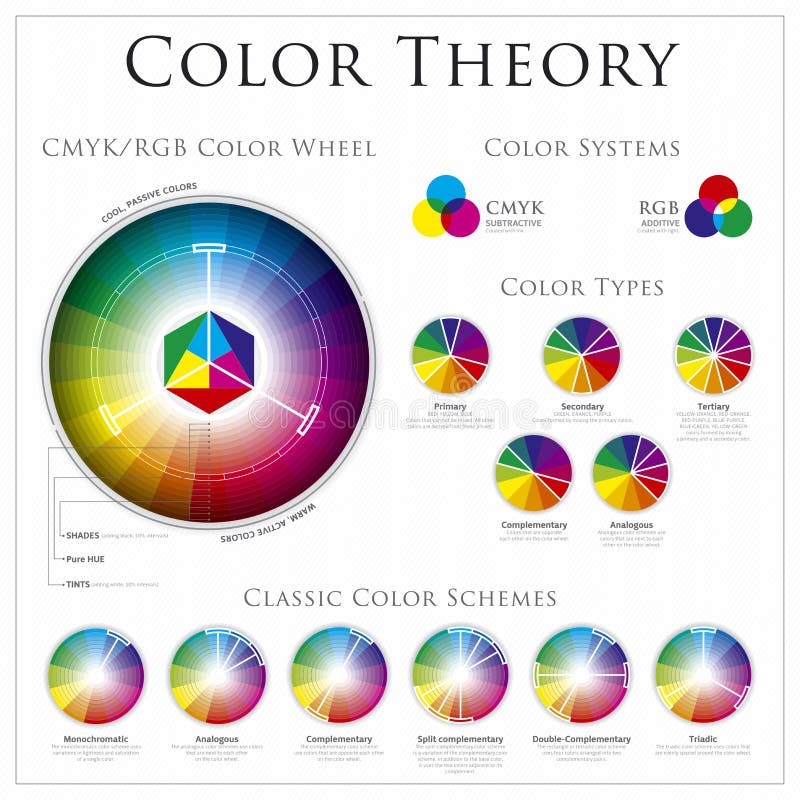
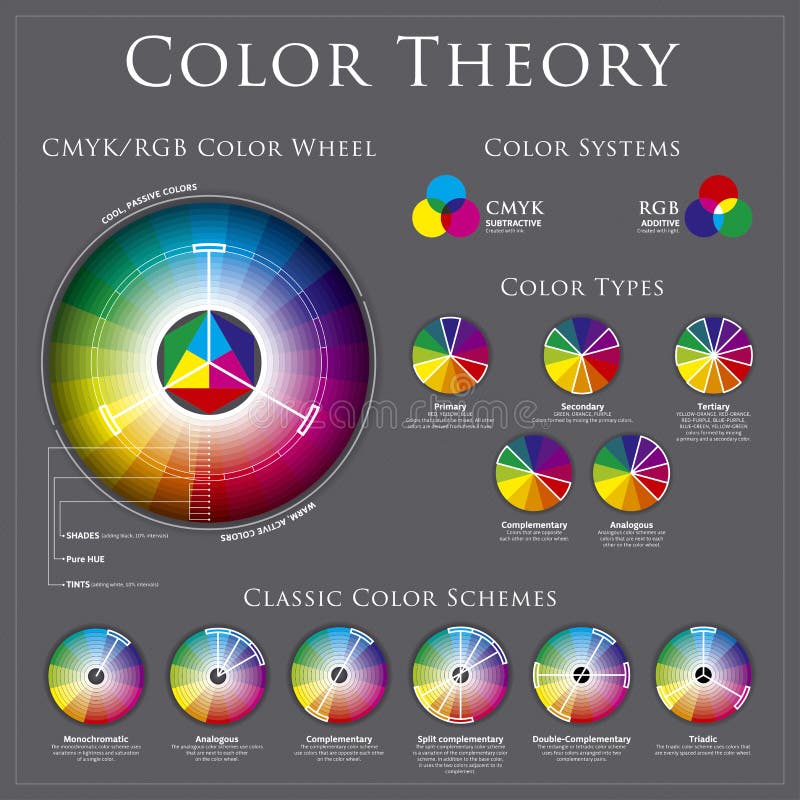
Free with trial CMYK/RGB color wheel theory charts, schemes and types. Color sample vectors Color wheel theory
Free with trial Color background of paint splashes on white. Color sample vectors Color background of paint splashes
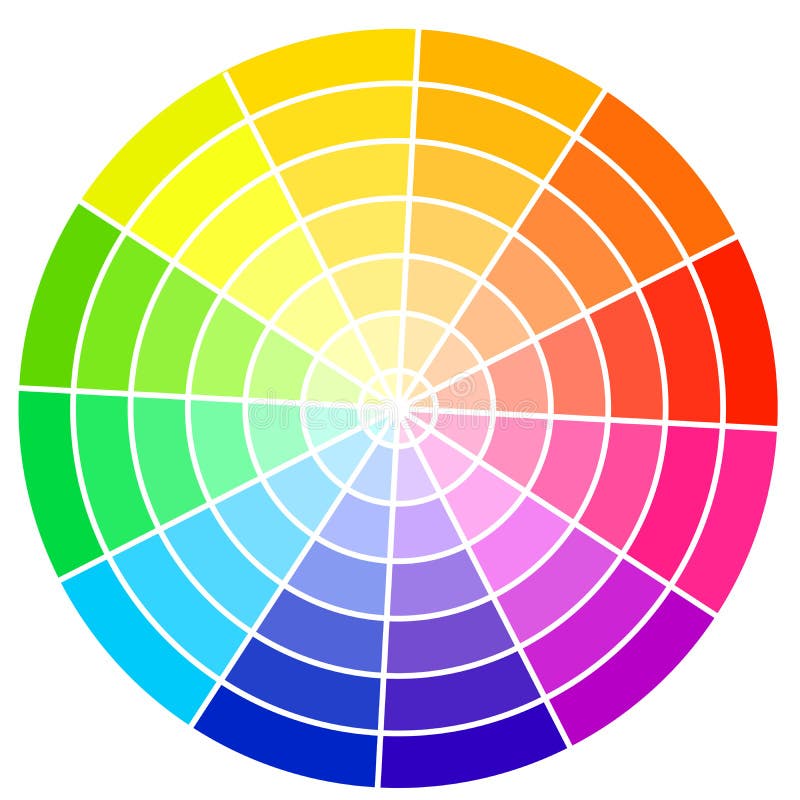
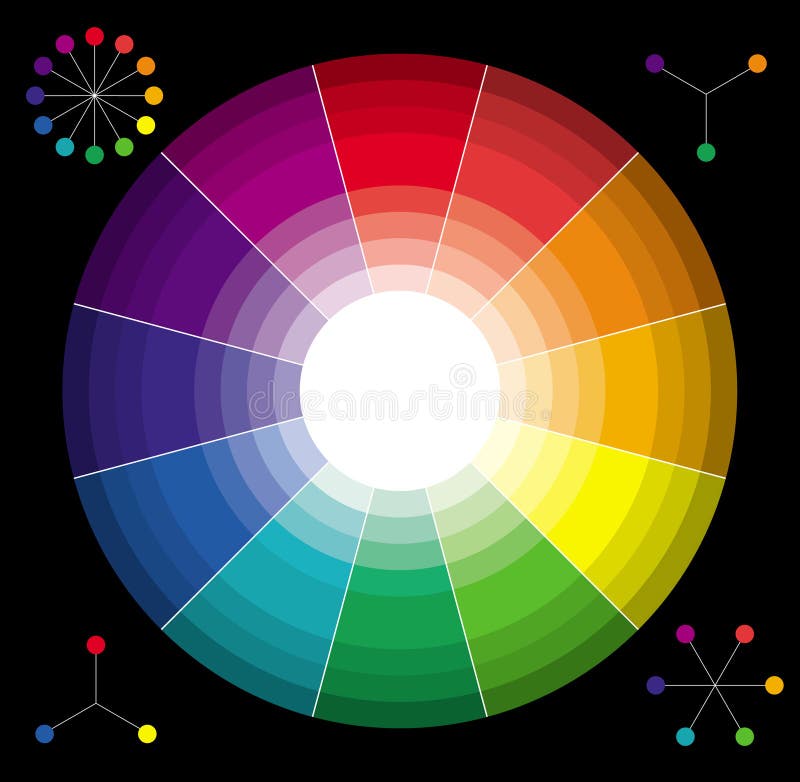
Free with trial Standard color wheel isolated on white background vector illustration. Color sample vectors Color wheel
Free with trial Basic color wheel with 12 samples of colors from CMY and RGB palette. Vector image. Color sample vectors Basic color wheel
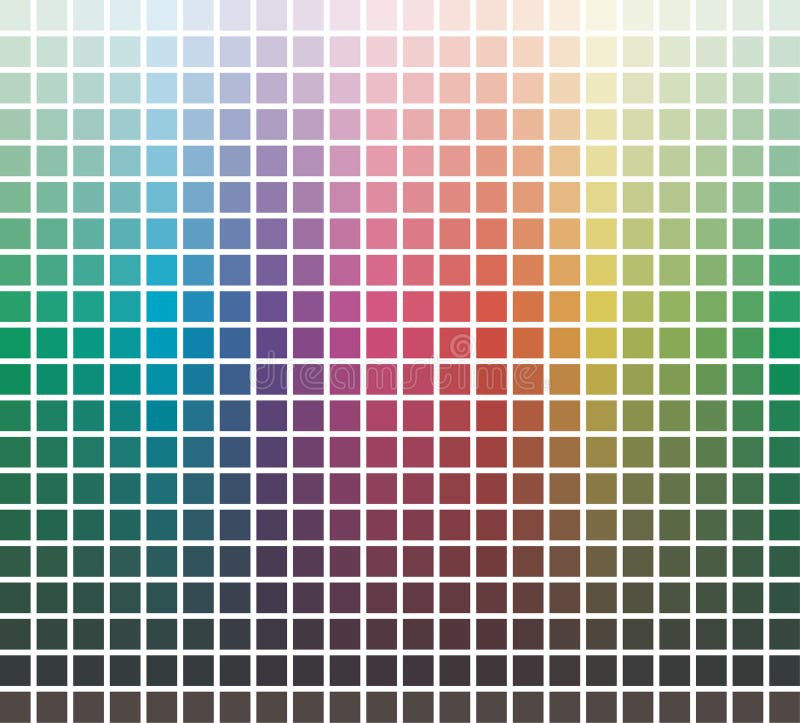
Free with trial Color swatch background also vector. Color sample vectors Color swatch - vector. Color swatch background also vector
Free with trial Color spectrum abstract background, beautiful colorful wallpaper, modern style. Color sample vectors Color spectrum abstract background, beautiful col
Free with trial Vector background color of the spray. Color sample vectors Color background. Vector background color of the spray
Free with trial CMYK/RGB color wheel theory charts, schemes and types. Color sample vectors Color wheel theory
Free with trial Vector set of color banners, vector. Color sample vectors Vector set of color banners
Free with trial Pixel color abstract background for your design. Color sample vectors Pixel color abstract background
Free with trial Color background of paint splashes. Vector illustration. Color sample vectors Color background of paint splashes
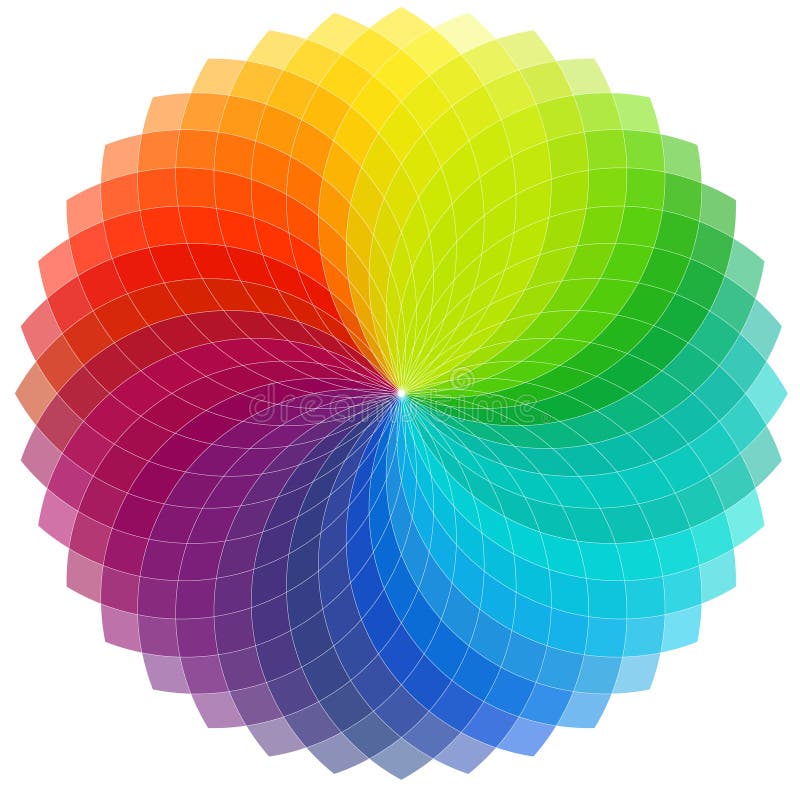
Free with trial Color wheel background. Vector Illustration. This is file of EPS10 format. Color sample vectors Color wheel background. Vector Illustration
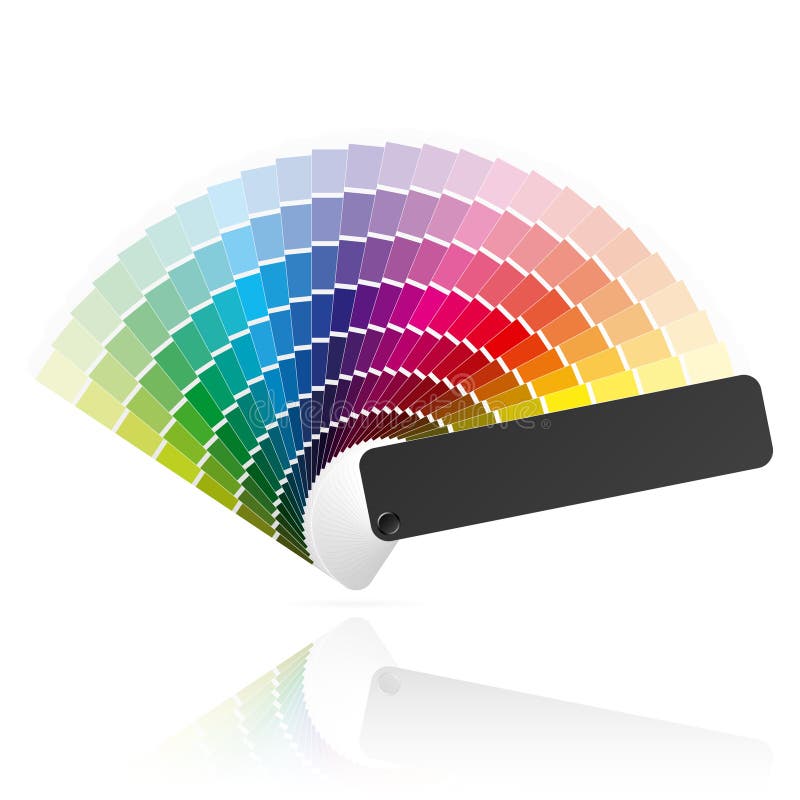
Free with trial Vector illustration of a color formula guide. Color sample vectors Color guide. Vector illustration of a color formula guide
Free with trial Detailed icon representing color palette guide and color picker. Color sample vectors Vector color picker icon. Detailed icon representing color palette guide and color picker
Free with trial Color wheel with shade of colors. Designer tool. Color sample vectors Color wheel with shade of colors.
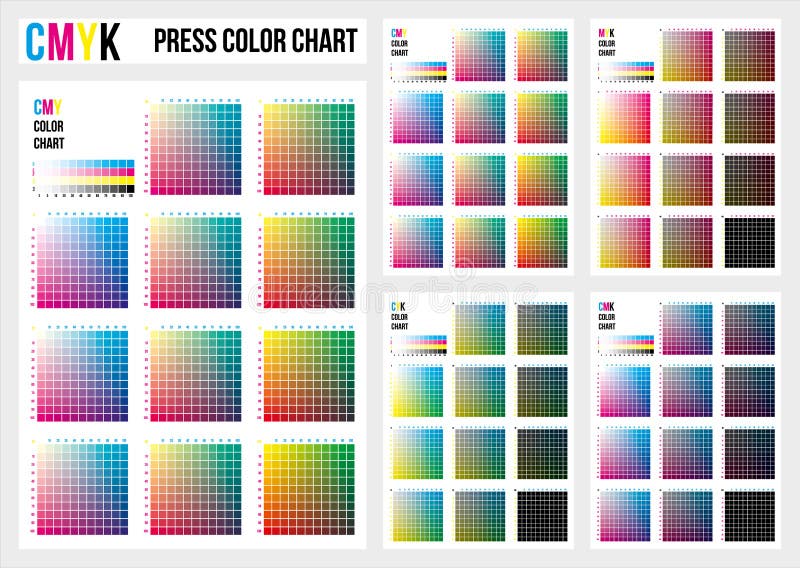
Free with trial To use in prepress and the press to choose color samples. For digital design and packaging when CMYK printing is required. Color sample vectors CMYK press color chart. Vector color palette, CMYK process printing match. Color management, quality control in print production. To use in prepress and the press to choose color samples. For digital design and packaging when CMYK printing is required
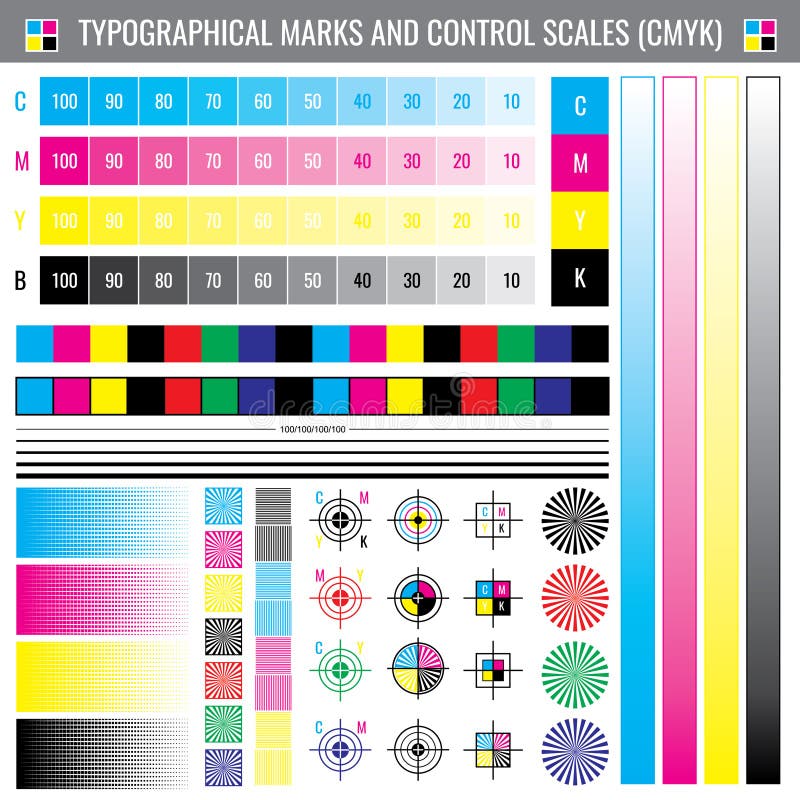
Free with trial Calibration printing crop marks. CMYK color test vector document. Illustration of calibration color cmyk. Color sample vectors Calibration printing crop marks. CMYK color test vector document
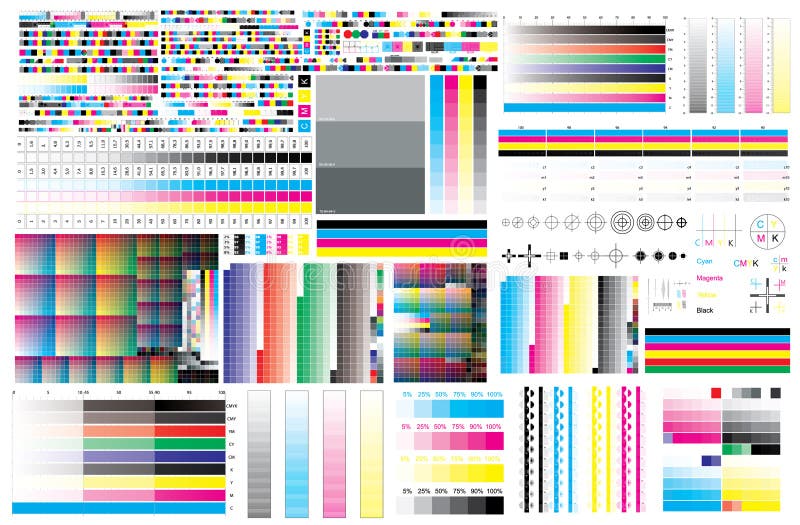
Free with trial CMYK print test color offset vector calibration printing marks, color bar CMYK and color test chart. Print control strips color cmyk, registration marks, cross polygraphy for prepress and print. Color sample vectors CMYK print test color offset vector calibration printing marks, color bar CMYK and color test chart.
Free with trial Gift voucher and coupon gold or purple color set. include sample text position. vector illustration. Color sample vectors Gift voucher and coupon gold or purple color set. include sample
Free with trial Polo shirts with sample text space. Vector. Color sample vectors Polo shirts with sample text space.
Free with trial Long sleeved shirts with sample text space. Vector. Color sample vectors Long sleeved shirts with sample text space.
Free with trial Color wheel vector spectrum. Colorful circle rainbow design. Creative saturation palette. Graphic illustration. Color sample vectors Color wheel vector spectrum. Colorful circle rainbow design. Creative saturation palette. Graphic illustration
Free with trial Art Nouveau Frames Psychedelic Art Colors. Decorative Frames, Photo Frames Art Nouveau Style, 1960s, 1970s Psychedelic Color Palettes. Color sample illustrations Art Nouveau Frames Psychedelic Art Colors. Decorative Frames, Photo Frames Art Nouveau Style, 1960s, 1970s Psychedelic Color Palettes
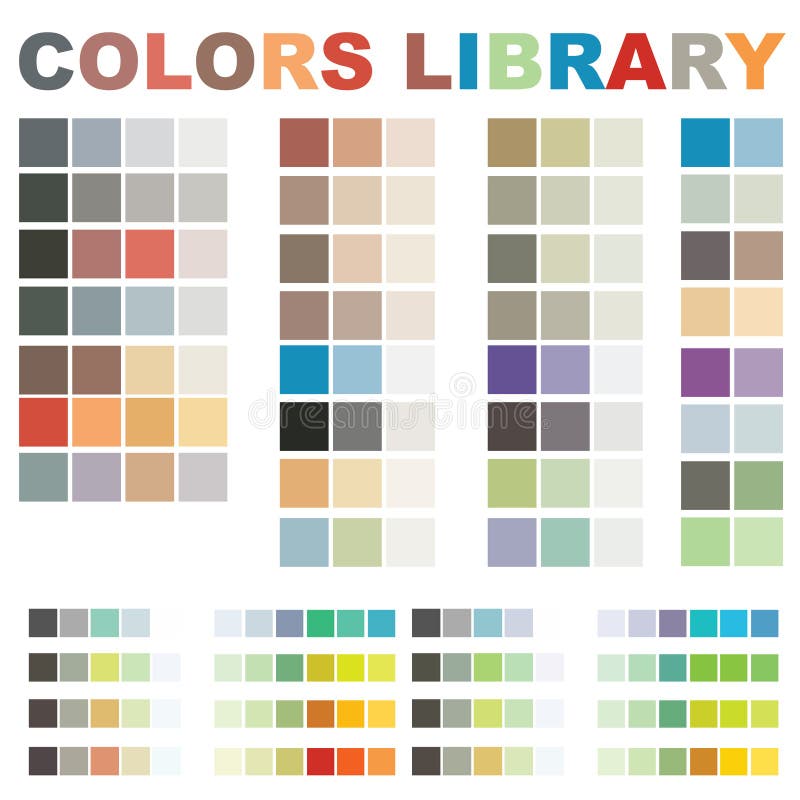
Free with trial Colour samples palette of color guide. Color sample vectors Vector colors library. Colour samples palette of color guide.
Free with trial This illustration is drawing music note enroll love in pink color background seamless pattern. Color sample vectors Music love note pink seamless pattern. This illustration is drawing music note enroll love in pink color background seamless pattern.
Free with trial Circle paint drop set for design - four elements pastel color. Color sample vectors Circle paint drop set
Free with trial Colour samples palette of color guide. Color sample vectors Vector colors library. Colour samples palette of color guide.
Free with trial An abstract design template with sample text - this vector is fully customizable. Color sample vectors Dots Wall Layout. An abstract design template with sample text - this vector is fully customizable.
Free with trial A beautifully designed 2-color flyer to promote a special event, save the date card, invitation or just a promotional advertisement for your business. Color sample vectors Template Event Flyer or Save The Date Card. A beautifully designed 2-color flyer to promote a special event, save the date card, invitation or just a promotional advertisement for your business.
Free with trial Set of vector colorful paint grunge banners. Color sample vectors Color paint grunge banners. Set of vector colorful paint grunge banners
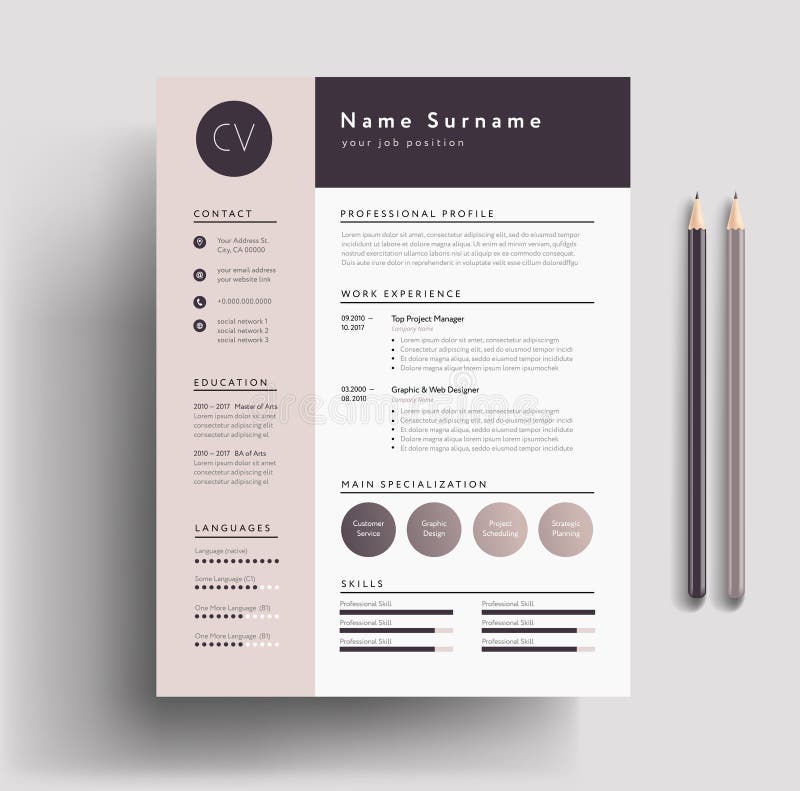
Free with trial Beautiful CV / Resume template - elegant stylish design - dusty pink color background vector. Color sample vectors Beautiful CV / Resume template - elegant stylish design - dusty
Free with trial Certificate of completion (template or sample background) with colorful (bright, rainbow) wave lines pattern (border). Design for diploma, invitation, gift voucher, ticket, awards. Also useful for: Degree certificate, Business Education (Courses), Certificate of Achievement, Competitions, Certificate of Authenticity, Graduation Certificate, Sport certificate, Certificate of Honor, School awards, Music (Language) lessons. Vector. Color sample vectors Certificate / Diploma background (template). Certificate of completion (template or sample background) with colorful (bright, rainbow) wave lines pattern (border). Design for diploma, invitation, gift voucher, ticket, awards. Also useful for: Degree certificate, Business Education (Courses), Certificate of Achievement, Competitions, Certificate of Authenticity, Graduation Certificate, Sport certificate, Certificate of Honor, School awards, Music (Language) lessons. Vector
Free with trial Put your own content in shopping cart with only 5 step in e. q. Photoshop or Gimp. Content of image are 3 member. Back cover, front cover and black contour of front cover. This is the procedure: 1. Image/Extract black contour of front cover in separate layer 2. Select/Color Range/Shadows of selection (this make selection of front cover contour) 3. Select/Save selection of black contour 4. Put front cover over black contour in separate layer and get Select/Load selection 5. Select/Inverse and delete all white fields around front cover So you have now 2 layers (Front and back cover) and between them you can put your own isolated content (View sample on image). Color sample illustrations Your content in a cart. Put your own content in shopping cart with only 5 step in e.q. Photoshop or Gimp. Content of image are 3 member. Back cover, front cover and black contour of front cover. This is the procedure: 1. Image/Extract black contour of front cover in separate layer 2. Select/Color Range/Shadows of selection (this make selection of front cover contour) 3. Select/Save selection of black contour 4. Put front cover over black contour in separate layer and get Select/Load selection 5. Select/Inverse and delete all white fields around front cover So you have now 2 layers (Front and back cover) and between them you can put your own isolated content (View sample on image)
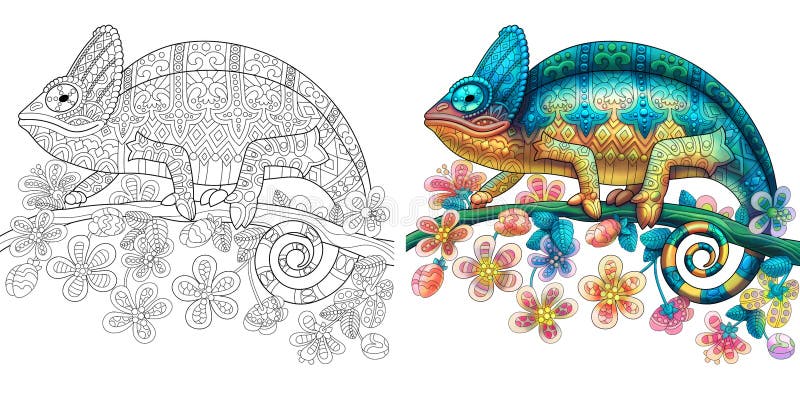
Free with trial Coloring page of chameleon lizard. Colorless and color samples for book cover. Freehand sketch drawing for adult antistress colouring with doodle and zentangle elements. Color sample vectors Zentangle stylized chameleon lizard. Coloring page of chameleon lizard. Colorless and color samples for book cover. Freehand sketch drawing for adult antistress colouring with doodle and zentangle elements.
Free with trial Abstract geometric background. Modern overlapping triangles. Unusual color shapes for your message. Business or tech presentation, app cover template. Color sample vectors Abstract geometric background. Modern overlapping
Free with trial Abstract geometric background. Modern overlapping triangles. Unusual color shapes for your message. Business or tech presentation, app cover template. Color sample vectors Abstract geometric background. Modern overlapping
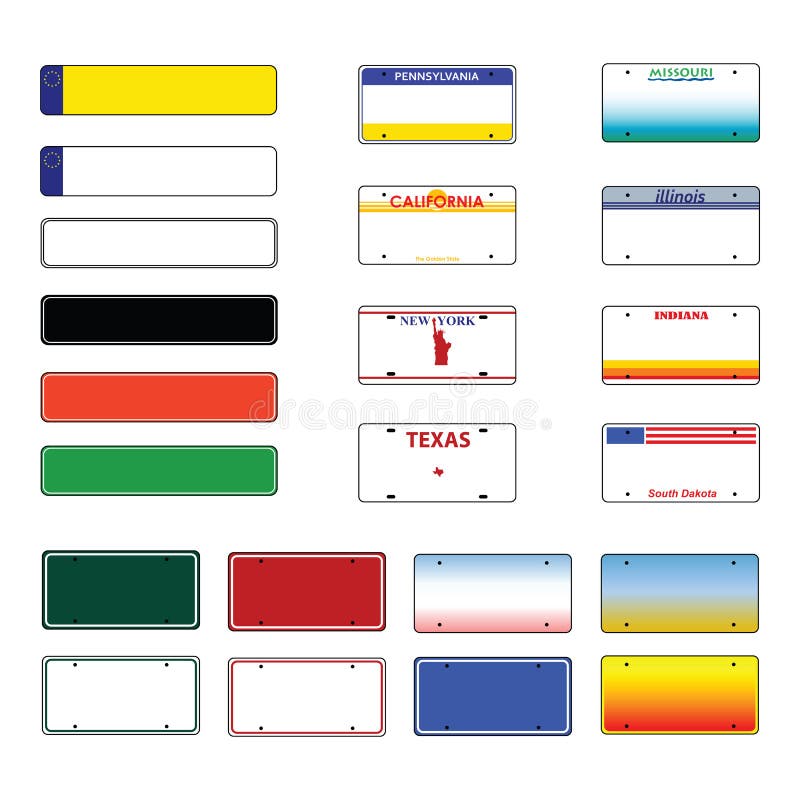
Free with trial Vector license plates from all over the world. Like: New York, California, Texas, Pennsylvania, Missouri, Illinois, Indianna, South Dakota and more. Color sample vectors License plates vector. Vector license plates from all over the world. Like: New York, California, Texas, Pennsylvania, Missouri, Illinois, Indianna, South Dakota and more...
Free with trial Abstract retro vector dots halftone wave. Halftone design elements for your design. Color sample vectors Abstract retro vector dots halftone wave
Free with trial The latest Apple IMAC computer template display illustration. An additional Vector. Eps file available. (you can use elements separately). Color sample vectors Apple IMac Monitor. The latest Apple IMAC computer template display illustration. An additional Vector .Eps file available. (you can use elements separately) .
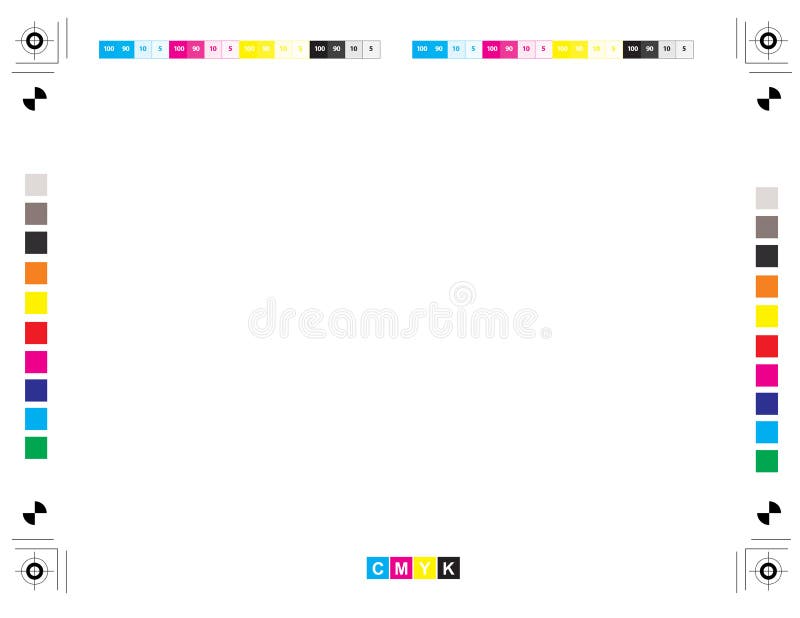
Free with trial A calibration chart for prepress printing. This has a transparent background for easy overlay over images and graphics. Color sample vectors Vector Printing Calibration Chart. A calibration chart for prepress printing. This has a transparent background for easy overlay over images and graphics.
Free with trial Abstract halftone background with copy space. Color sample vectors Abstract halftone background
Free with trial Vector background with blue christmas balls. Color sample vectors Blue christmas balls
Free with trial Modern web buttons collection. glossy and rounded kit. ready to be integrated in to your design. vector file included. Color sample vectors Modern web buttons kit. Modern web buttons collection. glossy and rounded kit. ready to be integrated in to your design. vector file included
Free with trial Abstract vector illustration depicting colorful layout background. Color sample vectors Abstract colorful layout. Vector. Abstract vector illustration depicting colorful layout background.
Free with trial Olive tree on vintage paper. Olive oil. Vector olive tree. For labels, pack. Color sample vectors Olive tree. Olive oil. Vector olive tree on vintag. Olive tree on vintage paper. Olive oil. Vector olive tree. For labels, pack.
Free with trial Gears blueprint vector illustration technology teamwork solution... concepts. Color sample vectors Gears blueprint background. Vector. Gears blueprint vector illustration technology teamwork solution...concepts.
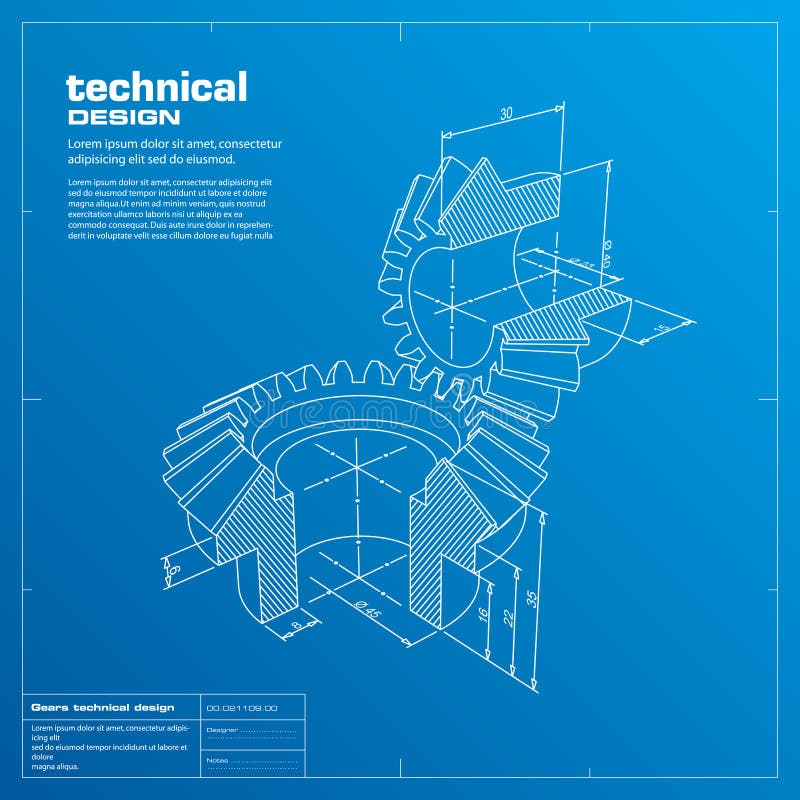
Free with trial Gears blueprint vector illustration technology teamwork solution... concepts. Color sample vectors Gears blueprint background. Vector. Gears blueprint vector illustration technology teamwork solution...concepts.
Free with trial Vector Painting Concept with House isolated on white background. Color sample vectors Vector Painting Concept with House
Free with trial Set of three abstract wavy backgrounds. Color sample vectors Set of abstract backgrounds. Set of three abstract wavy backgrounds
Free with trial Abstract halftone background with copy space. Color sample vectors Abstract halftone background
Free with trial Seamless flower black and white retro background pattern in vector. Color sample vectors Seamless flower retro background in vector. Seamless flower black and white retro background pattern in vector.
Free with trial Abstract butterfly and flower for tattoo. Color sample vectors Butterflies. Abstract butterfly and flower for tattoo
Free with trial Seamless floral retro background pattern in vector. Henna paisley mehndi doodles design pattern. Used clipping mask for easy editing. Color sample vectors Seamless floral background pattern in vector. Seamless floral retro background pattern in vector. Henna paisley mehndi doodles design pattern. Used clipping mask for easy editing.
Free with trial Blue abstract lines business vector background for your design. Color sample vectors Blue abstract lines business vector background. Blue abstract lines business vector background for your design.
Free with trial Certificate, Diploma of completion (template, background) with gold stripy (lines) pattern, frame. Certificate of Achievement, awards, winner, degree certificate, business Education (Courses), lessons. Color sample vectors Certificate, Diploma template. Gold award pattern. Certificate, Diploma of completion (template, background) with gold stripy (lines) pattern, frame. Certificate of Achievement, awards, winner, degree certificate, business Education (Courses), lessons
Free with trial Blue dots grounge texture with transparency. Color sample vectors Dot texture III. Blue dots grounge texture with transparency
Free with trial Illustration of 3 sign posts with different color choices, blank or with text sample, isolated on white. Color sample vectors Signposts. Illustration of 3 sign posts with different color choices, blank or with text sample, isolated on white.
Free with trial Beautiful colorful and fresh glossy web buttons, also available in vector format. Color sample vectors Glossy web buttons
Free with trial High detail vector ripped Paper (please visit my portfolio for more... ) Additional vector format Eps8 (you can very easy edit with separate layers). Color sample vectors Vector Ripped Paper
Free with trial Art deco building vector composition illustration over a color background. Color sample vectors Deco building vector
Free with trial Transparent blue music notes and bubbles on a blue wave background. Amazing transparent blue color and airy feeling. Color sample vectors Music notes and waves. Transparent blue music notes and bubbles on a blue wave background. Amazing transparent blue color and airy feeling.
Free with trial Set of the graphic design services related icons. Color sample vectors Graphic design icon set. Set of the graphic design services related icons
Free with trial High details vector illustration of wave backgrounds. Color sample vectors Abstract wave backgrounds. High details vector illustration of wave backgrounds.
Free with trial Colorful splash paint on white background. Color sample vectors Colorful splash background. Colorful splash paint on white background
 Sign in